Settings
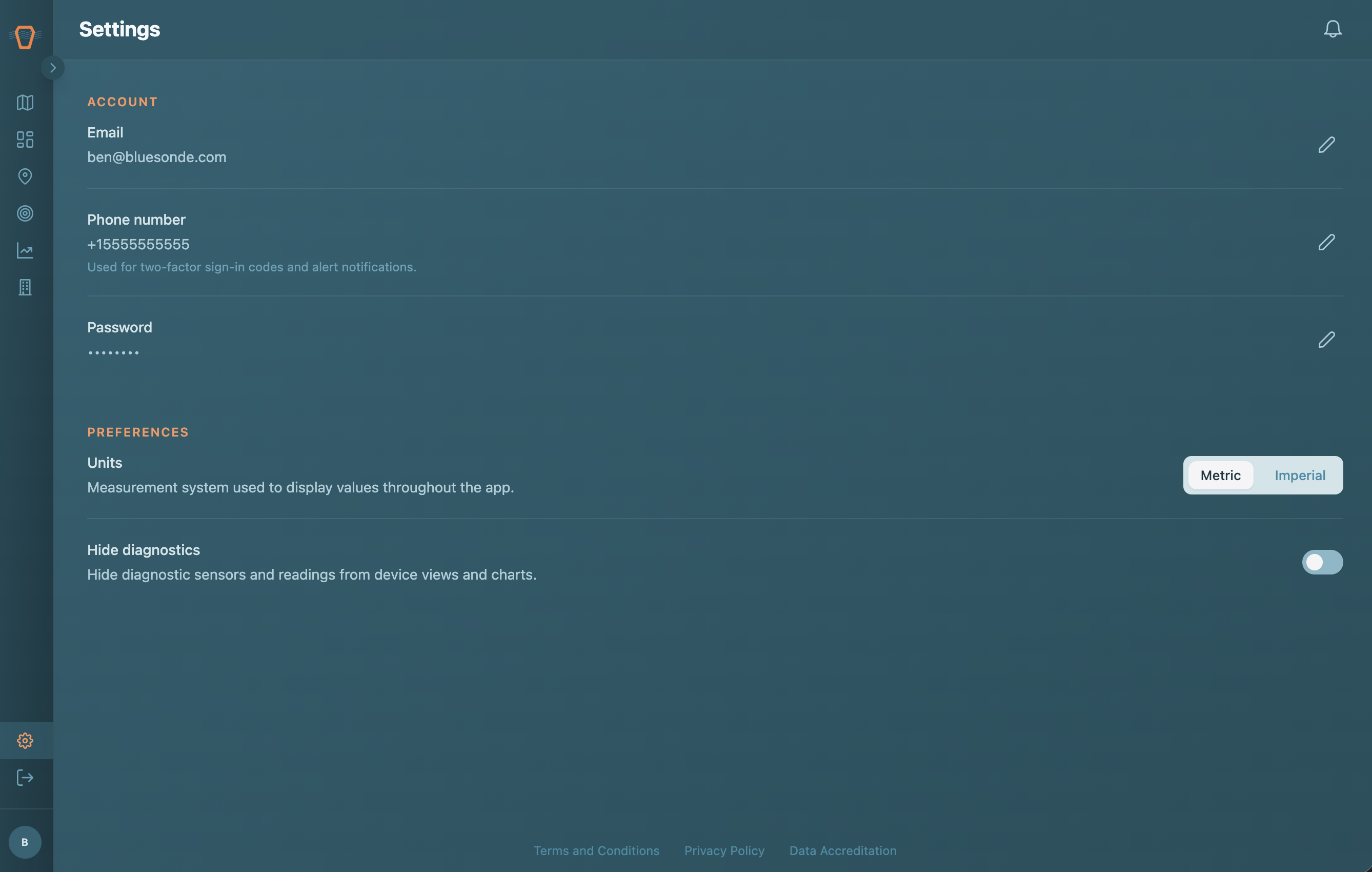
The Settings page is where you manage your personal account and choose how the Dashboard displays data for you. Open it from the gear icon at the bottom of the sidebar. These settings apply to your own account, so changing them only affects what you see, not your teammates.
Account
The Account section holds the credentials tied to your login.
- Email — the address you sign in with and where account notifications are sent. Use the edit button to change it.
- Phone number — the number enrolled for multi-factor authentication (MFA). This same number receives SMS alert notifications, so keep it current.
- Password — change your password at any time. Passwords must be at least 15 characters and include an uppercase letter, a lowercase letter, a number, and a special character.
Preferences
The Preferences section controls how readings and Devices are displayed throughout the app.
- Units — choose the measurement system used to display values everywhere in the Dashboard. Select Metric (for example, °C and meters) or Imperial (for example, °F and feet). The change takes effect immediately across device views, charts, and the Analysis page.
- Hide diagnostics — turn this on to hide diagnostic Sensors and readings (such as internal humidity and temperature) from your Device views and charts, leaving only environmental data. Turn it off to see the full picture, including the diagnostics that feed a Device's status.
Developer Settings
If you build integrations or pull data into your own tools, Developer Settings is a separate page for API Keys and OAuth Applications. It is available to Organization Admins.